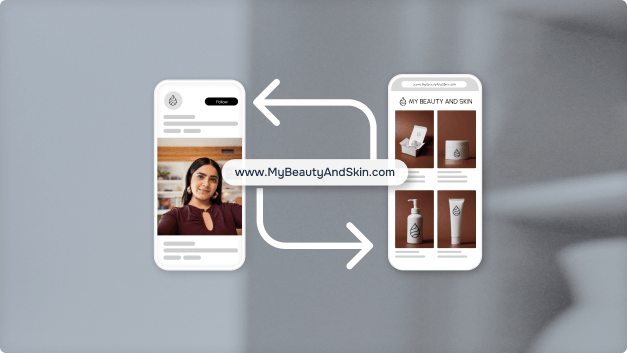




If your business has a social media page or online store, you can make it easier to find with a memorable, custom .com web address. This is because with domain forwarding, you can direct a domain name to the online presence of your choice, which can help you reach more people.
What Does "Forwarding" a .com Domain Name Mean?
Domain name forwarding (also called web forwarding or redirecting) is just like forwarding mail when you move - you simply create a rule that tells your domain name provider to send all visitors who type your domain name in a web browser to the online page of your choice. You can update the rule anytime you'd like, so as your online presence evolves and grows, your domain name can move with you.

Some additional benefits you may get from forwarding a .com domain name include:
- A memorable web address to use for marketing. A .com domain name is for more than just a website. Help turn customers into repeat customers by giving your online store a memorable .com web address with domain name forwarding.
- A consistent web address for your business. Get a custom .com web address that moves with your business, so even if you change which social media or e-commerce sites your business uses, your customers will always be able to find you.
- The flexibility to change or update the online destination a .com domain name sends your visitors to at any time.
Research shows that consumers worldwide believe that .com is a great choice for an online presence.1 Plus, a .com domain name makes it easier for customers to find and recognise a business on social media and e-commerce platforms.
What Are the Different Ways To Forward a Domain Name?
Now that we've gone over the benefits of domain name forwarding, let's break down the different types of forwarding and how each one can affect what your customers see in their web browser.
When working with a domain name retailer, you will likely have two options:
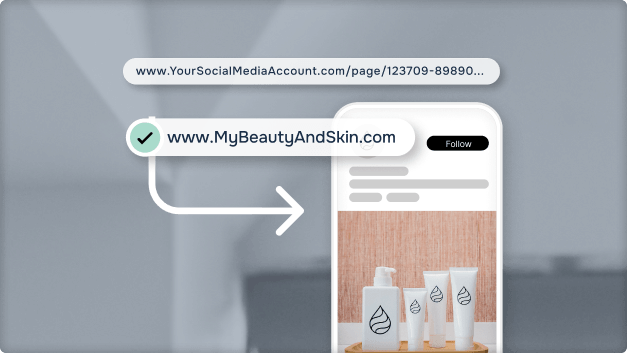
- Forwarding Only: When a person types in your business's custom .com domain name in a web browser, they're automatically forwarded to a destination web address of your choice. For many businesses, this option meets their general forwarding needs.
-
Forwarding OptionsForwarding Only
-
Visitor Types InMyBeautyandSkin.com
-
Website URL Visitor SeesYourSocialMedia
Account.com/ mybeautyandskin -
Address Bar DisplaysYourSocialMedia
Account.com/ mybeautyandskin
- Forwarding with Masking: While this option is similar to the “forwarding only” option, there are few additional benefits. Unlike “forwarding only,” “forwarding with masking” helps ensure that your audience will continue to see the custom .com domain name in the address bar rather than another address from your social media or other site. In addition, it lets you customise your business's title and description to make it search engine friendly.
-
Forwarding OptionsForwarding With Masking
-
Visitor Types InMyBeautyandSkin.com
-
Website URL Visitor SeesYourSocialMedia
Account.com/ mybeautyandskin -
Address Bar DisplaysMyBeautyandSkin.com
How Do I Forward a .com Domain Name?
To start, you'll need to have already registered a .com domain name and determined your destination web address.
Many domain name retailers generally follow a five-step process. Since every retailer's process may differ, we recommend consulting their help centre or searching their site for specific instructions on how to forward a domain name.
-
1
Register a .com Domain Name
Start by registering a .com domain name through your preferred registrar. You can find great domain name suggestions by using our domain name generator here.
-
2
Log in to Your Account With Your Domain Name Retailer
Log in and go to “Manage Domain Names” or click on the "Domain Name" tab. This may also be referred to as your “Control Panel” or “My Account” depending on your retailer.
-
3
Select the .com Domain Name You Wish To Forward
Select the .com domain name you wish to forward, look for the “Domain Forwarding” or “Redirect Domain” option, and click “Add New”. If you have registered multiple domain names with your domain name retailer, you'll need to repeat these steps for each domain name you"d like to forward. These steps may vary depending on your domain name retailer.
-
4
Confirm the Destination Where the .com Domain Name Will Be Forwarded
Paste your social media or e-commerce page URL into the "Domain Forwarding" or “Redirect Domain” section. Depending on your domain name retailer, you may also decide the type of forwarding you would like to choose (forwarding only vs. forwarding with masking).
-
5
Update Your DNS Settings
Make sure you update your DNS settings to support this change, then hit “Save”, and you're done.
TAKEAWAY
You're now ready to grow your online presence with the help of a .com domain name.